PORT22: The SFTP client I wanted on my Chromebook
I look after a handful of DigitalOcean Droplets from my Chromebook. I liked FileZilla’s two-pane layout enough to write a guide to installing FileZilla on a Chromebook. But on my machine it sometimes closed halfway through downloading a folder full of subdirectories. I’d reopen it and have to work out which files had actually made it across. Some of the alternatives made even choosing my SSH key feel like hard work.
I built PORT22 around that job. Open a saved server, pick a folder and watch the files arrive. It’s a free, open-source Linux desktop app with a dark violet interface. The graph shows actual transfer speed, and the queue remembers which files have finished if you need to stop.
Install PORT22 on a Chromebook
1. Turn on Linux. Click the clock at the bottom right of your Chromebook, open Settings → About ChromeOS → Developers, and choose Set up beside Linux development environment. Follow the prompts. A Terminal window opens when setup finishes. If Linux is already enabled, open Terminal from the Launcher and select penguin if prompted. On a work or school Chromebook, your administrator may need to enable Linux. Google’s Linux setup guide.
2. Install the app. Copy the whole block below, paste it into the Linux Terminal with Ctrl+Shift+V and press Enter. The commands refresh Debian’s package list, download PORT22 1.2.0 from the project on GitHub and install it with its dependencies. If asked to continue, type Y and press Enter.
sudo apt update &&
wget -O /tmp/port22_1.2.0_all.deb https://raw.githubusercontent.com/smartdevuk/PORT22/ae018495534c24cbff6c2e876f0b25bddb404b64/packages/port22_1.2.0_all.deb &&
sudo apt install /tmp/port22_1.2.0_all.deb
3. Pin it to the shelf. Open the Chromebook Launcher, search for PORT22, then right-click its icon (or tap with two fingers) and choose Pin to shelf. That shortcut takes you straight to your saved connections. The app runs in the Linux environment, so a compatible Chromebook can install it without the Play Store.
Connect to your first server
SFTP transfers files over SSH, the same encrypted connection you may already use to log in to a server. You’ll need the server’s hostname or IP address, your SSH username and a private key that matches a public key authorised on that server.
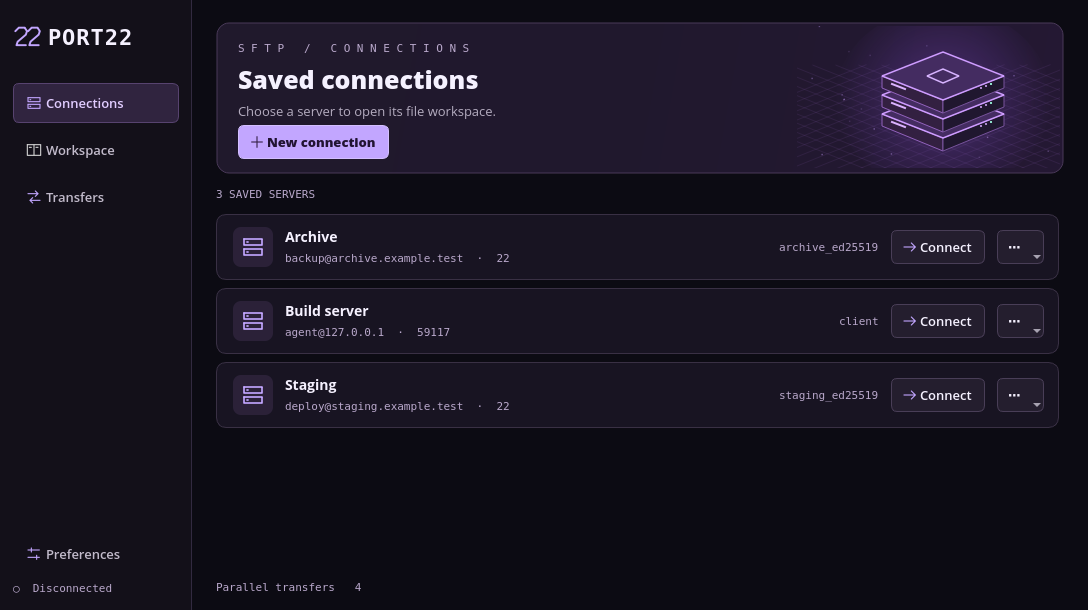
Click New connection and give it a recognisable name, such as Staging. Enter the host and username, leave the port at 22 unless your server uses a different one, and click Browse… to choose your private key. For example, if you have id_ed25519 and id_ed25519.pub, choose id_ed25519. Save the connection and click Connect. PORT22 remembers the key’s location and asks for its passphrase if it has one.
On the first connection, PORT22 displays the server’s host-key fingerprint. This identifies the server you’re reaching. Compare it with the fingerprint obtained through a trusted route, such as your Droplet’s web console, before accepting it. The dialog includes a command you can run in that console.
Try a folder download
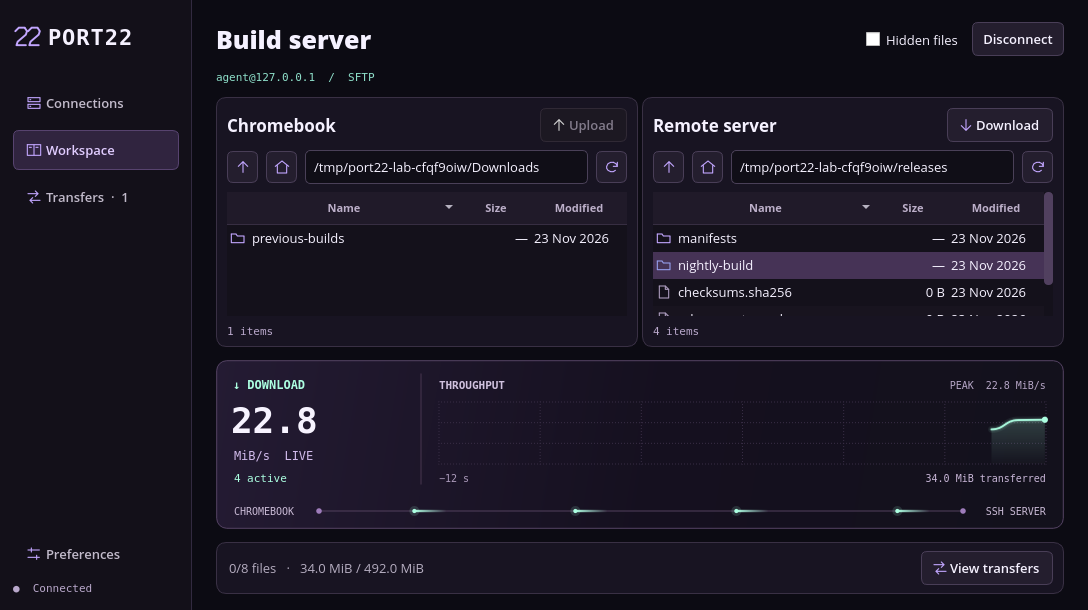
For a first test, pick a small folder you recognise. The left pane is your Chromebook and the right pane is the server. On the left, open the folder where you want the copy to land. On the right, select the server folder and click Download. To send something the other way, select it on the left and click Upload. You can also drag a selection across or use its right-click menu.
For an easy-to-find destination, use a folder under Linux files in the ChromeOS Files app. To use another ChromeOS folder, right-click it in Files and choose Share with Linux if offered. You can then open the shared location in PORT22’s left pane.
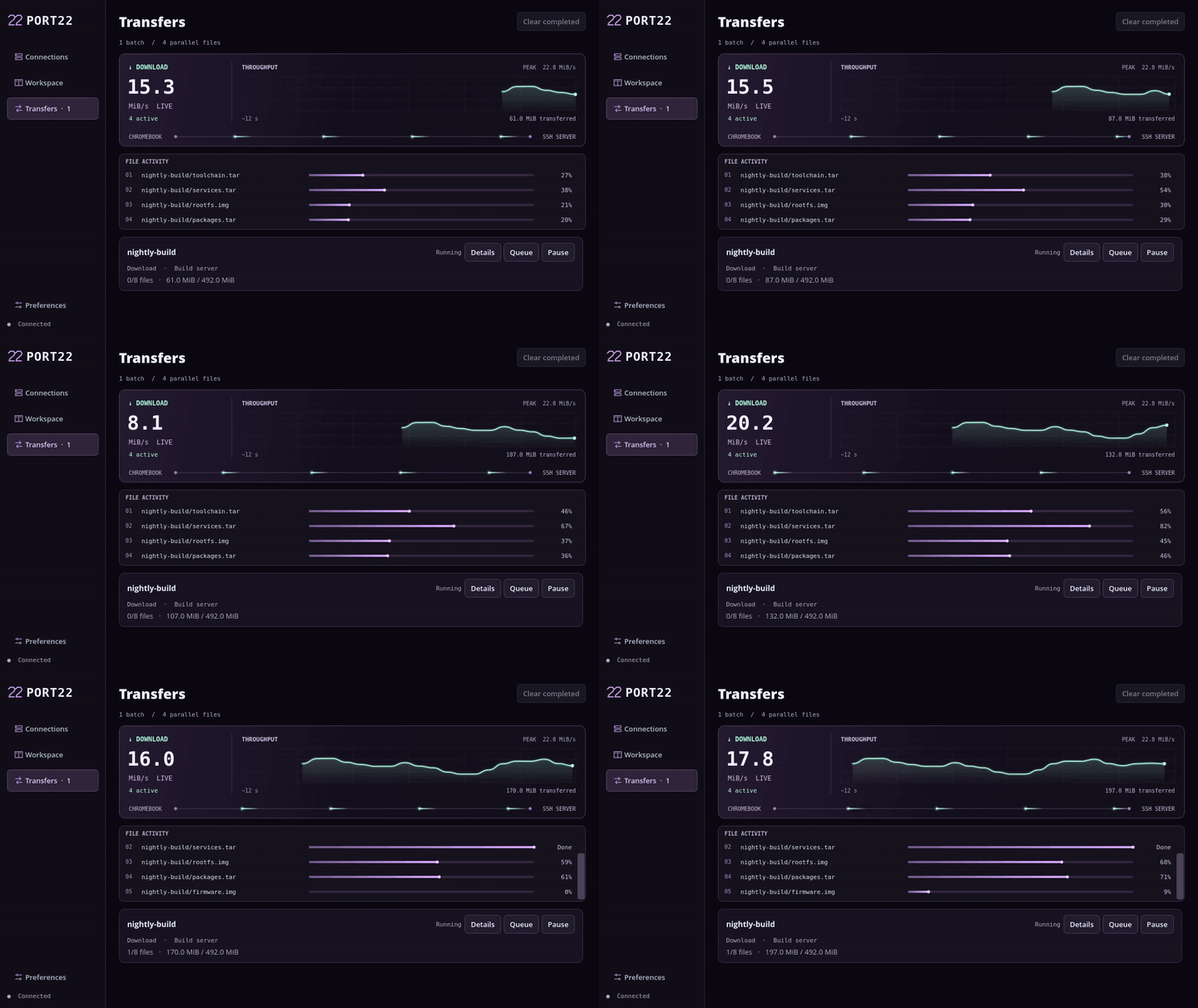
Four files can transfer at once by default. You can set one to eight under Preferences → Simultaneous files. The total can grow while PORT22 scans subfolders. Open Transfers for the live speed graph and four scrolling rows of file activity. The batch controls stay in place as new names appear.
When a destination file already exists, PORT22 shows both sizes and modification times. Pressing Apply with the defaults skips that file and subsequent conflicts until you disconnect. For a repeat upload, you might choose Overwrite if size or modification time differs and apply it to This transfer.
To take something out of a running batch, click Queue beside Details and remove the waiting file or folder. Files already transferring finish normally. If you pause or close the app, reconnect to the same server and choose Transfers → Resume. Completed files stay completed, and an interrupted file restarts from its beginning. To change permissions, right-click a file or folder in either pane and choose Permissions….
Can I use PORT22 on another system?
Yes. The same package targets Debian 12 and Debian 13 desktops. Download the Debian installer, open a terminal in the folder containing it and run:
sudo apt install ./port22_1.2.0_all.debPORT22 1.2.0 is a Linux desktop release. Native Windows and macOS installers are unavailable. On the server side, you just need SFTP access. A DigitalOcean account is optional.
The source code, installer and full-resolution recording are available on GitHub. Get PORT22 on GitHub.